
How to embed a video player on a website?

Ever landed on a website and instantly clicked on a video, and the player just played perfectly? That smooth experience feels like magic and fresh. If you’re building a website today, a video player is no longer optional. It’s a must-have for engagement, storytelling and better user experience.
So, how do you actually embed a video player on your website without complex coding?
Let's explore a fresh and simple way using Sato.
Why add a video player to your website?
A custom video player helps keep viewers on your site instead of sending them to any other platform, meaning you don’t get any unrelated suggestions. Adding a player improves user retention as viewers are likely to stay longer on the website and explore more content. A customizable video player keeps users engaged and also increases the time they spend on your website. An embedded video player helps in building trust and confidence with your business, creating something that reflects your identity and brand.
While there are plenty of video players out there which you can embed on your website, choosing among the many can be cumbersome. If you are looking for something lightweight, affordable with great customization, you cannot go wrong with Sato. Sato is a customizable HTML5 video player which you can embed on any no-code website.
To make it simple, we are giving you a step-by-step explainer on how you can use Sato on your website.
How to embed a video player using Sato?
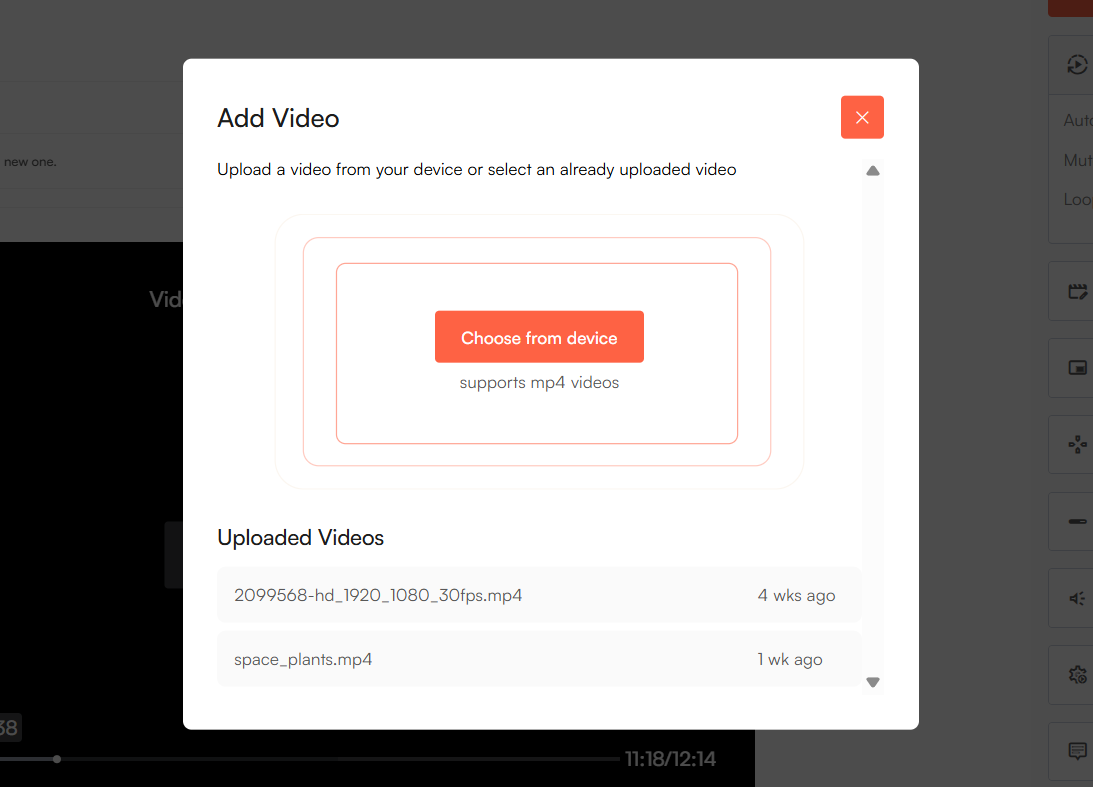
Step 1: Upload your video
First, you need to log in to your Sato dashboard and upload your video file. Sato processes the video you’ve uploaded and prepares it for smooth HTML5 playback across devices.
Step 2: Customize your player
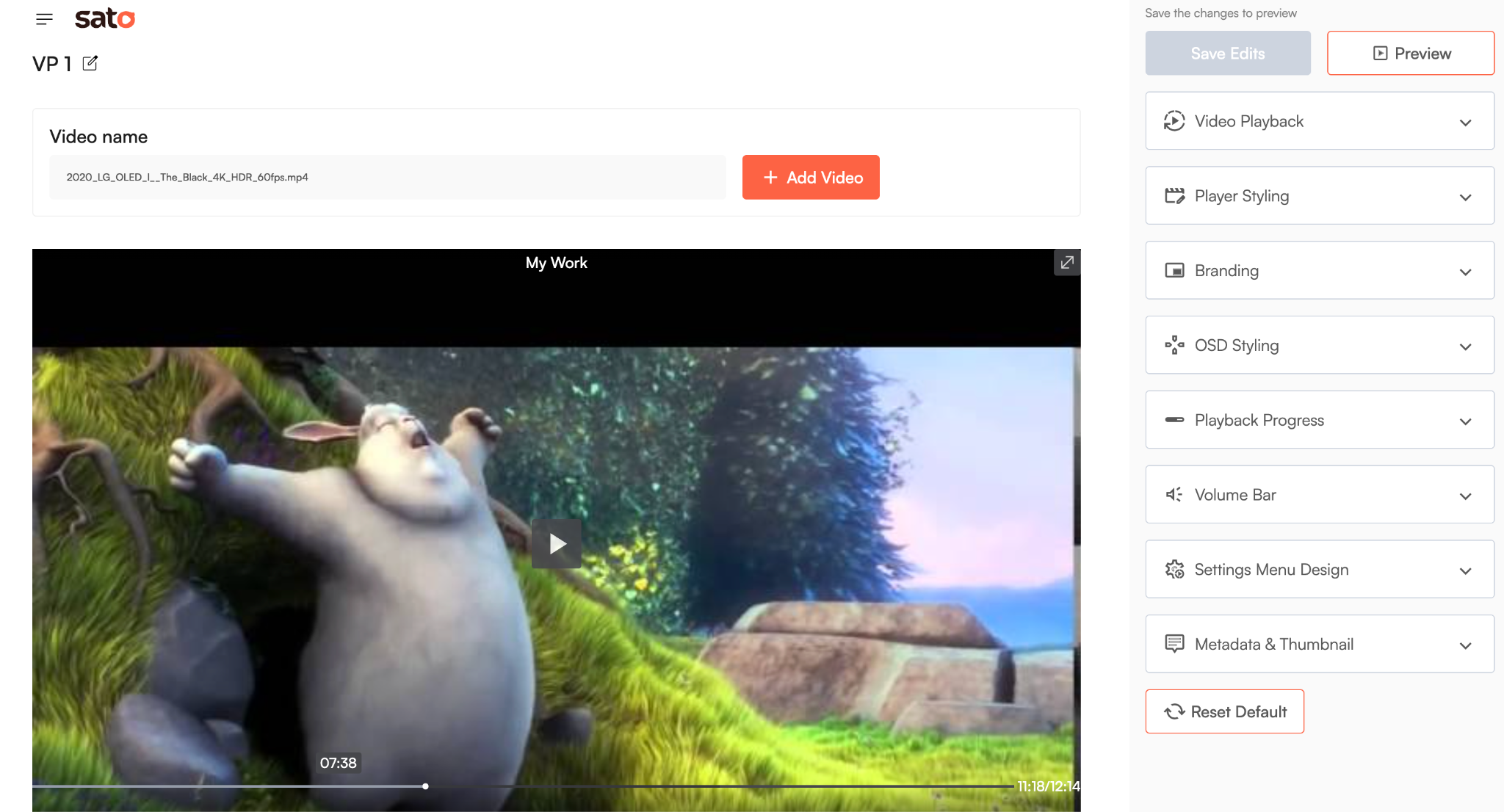
Now, you can customize the video player according to your wishes. Sato lets you customize-
- Player colors that match your brand
- Control playback options (play, pause)
- Thumbnail and other settings.
These customizations make your video player look like a natural part of your website, not an external embed.
Step 3: Copy the embed code
Once customization gets completed, Sato generates a simple embed code. All you need to do is just copy this code.
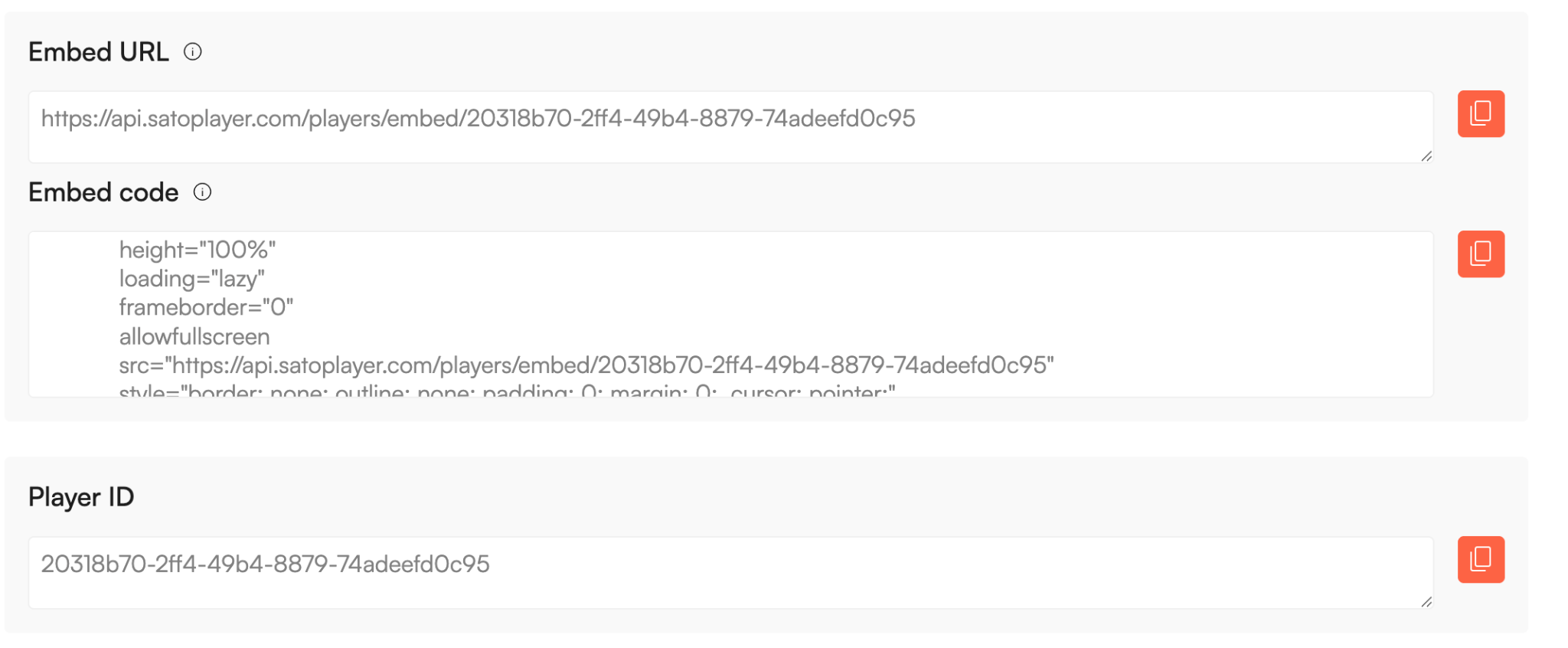
Step 4: Paste into your website
Now all you have to do is visit the website’s HTML editor (or CMS like Webflow, WordPress, etc.) and paste the embed code where you want the video to appear. Then, save and publish. And your video player is live!
Conclusion
Embedding a video player on the website doesn’t have to be technically tiresome or boring. Sato converts this lethargic work into a quick and creative process within a single step that keeps the audience engaged with the smoothness of the video player and by making the branding consistent.
Try Sato for free for a month and embed a video player on your website!

.png)


